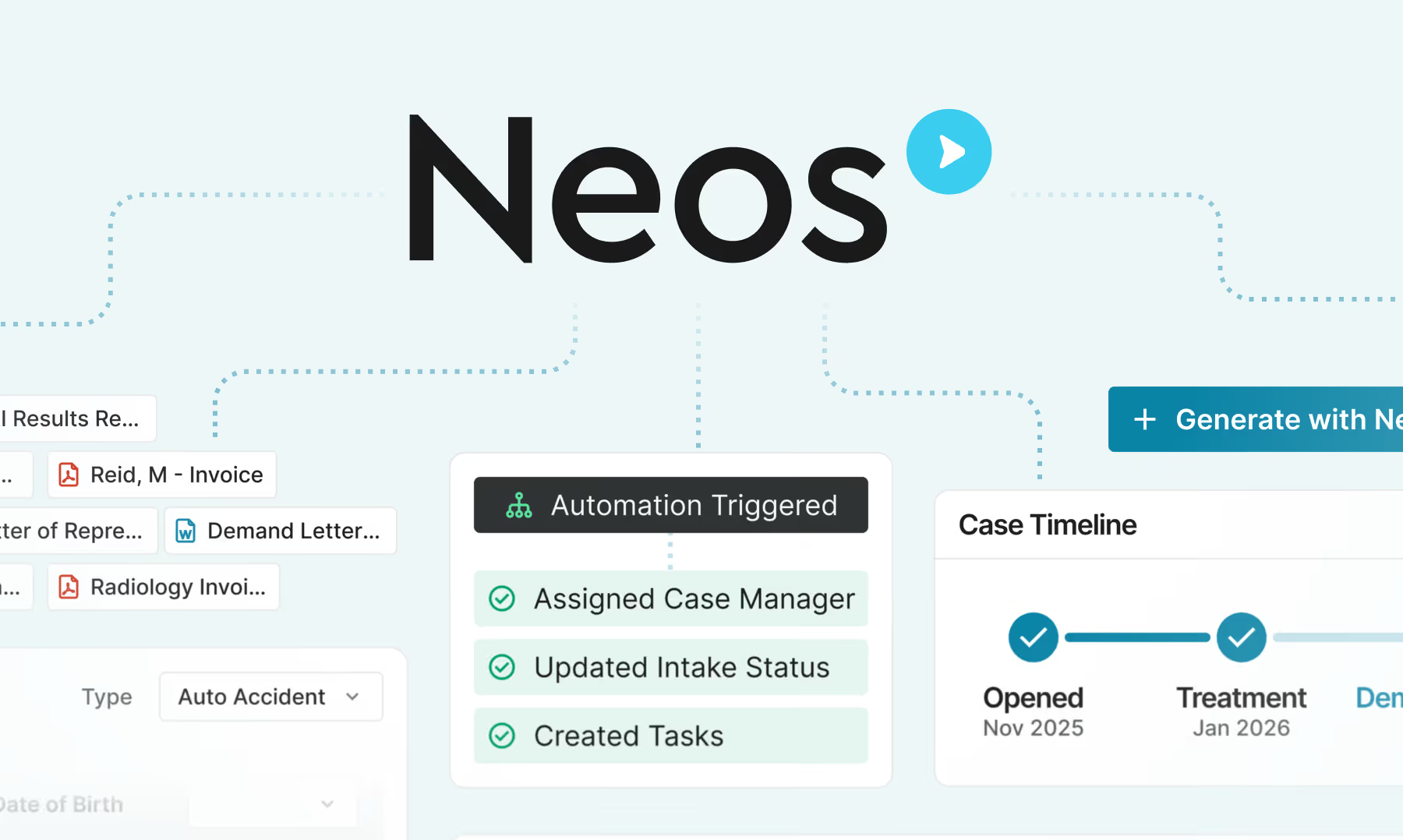
Are you considering migrating your law firm's case management system from Trialworks to Neos? Understanding how specific features from Trialworks will be adapted to fit into the Neos environment will help you navigate the migration process smoothly and get the most out of Neos.
Below, we dive into an overview of the essential features and functionality of Neos, the next generation of case management software, to help you navigate this transition seamlessly.
Preparing for Migration
To ensure a smooth migration process, it is important to take the necessary steps to prepare. Here’s a rundown of how your firm can get ready for migration:
- Start by verifying that all cases have assigned attorneys and support, as well as liability and sub-liability assignments. It is important to ensure that cases have been properly closed and that all relevant documents are linked in the case folder.
- Review and push any necessary docket entries from Trialworks to Outlook, ensuring that past due or completed entries are marked as completed.
- As part of the preparation, it is advisable to clean up any misspellings or duplicates in attorney/support names and review and remove any unused Trialworks libraries, including case types, categories, status/priority codes, contact types, docket activities, client roles, and divisions.
By proactively addressing these recommendations, you can optimize the migration process and streamline your workflow in the new system.
Getting the most out of the features and functionality in Neos
Trialworks and Neos serve the same purpose. However, Neos has taken those features to the next level to help you better serve the needs of your clients. With Neos, firms have the flexibility that allows for a customizable experience to make workflows more efficient. Let’s look at some of the key functionality that Neos provides.
Organizing Documents in Neos: List View vs. Folder View
Where are documents located in Neos? Documents are found in the Case Docs (Document) Tab in Neos, with a sub-tab that corresponds to the original Trialworks tab.
Neos offers two views to access documents: List View and Folder View. List View presents all your documents in a simple, detailed list format. It is straightforward, clean, and easy to navigate. On the other hand, Folder View categorizes documents into different folders. It's the better choice for those who prefer a structured layout. Users can try out both layouts and choose the view that best suits their needs.
Managing Dashboards and Case Calendars
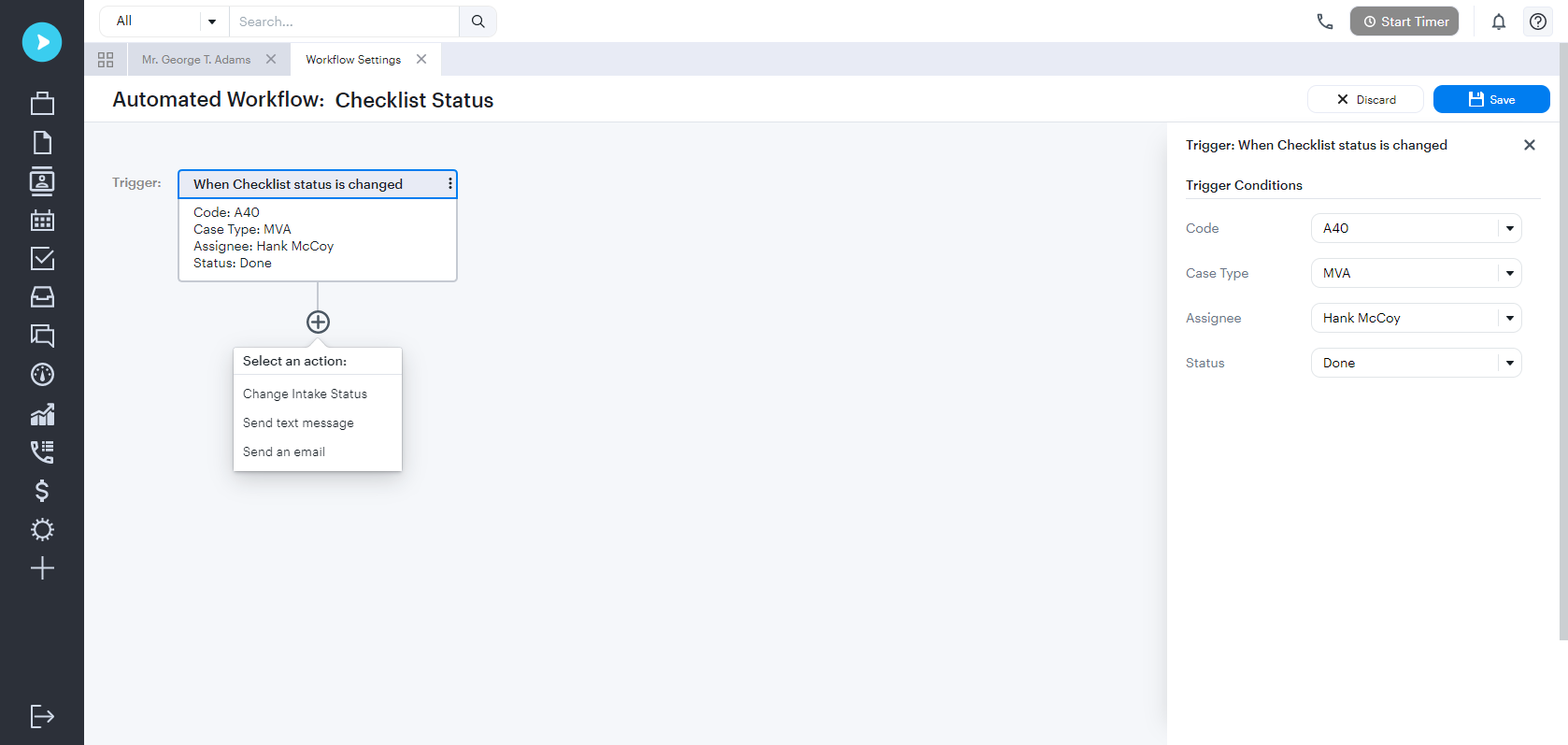
Reminders in Neos are a bit different from Trialworks. In Trialworks, reminders were populated from Docket entries. In Neos, the My Dashboards are populated by Checklists and Case Calendars.
If the Docket entry in Trialworks was sent to Outlook, those entries would appear on the Case Calendar in Neos. All other items will appear on the Checklist. If the Docket entry had multiple people assigned, through the conversion, the first person on the list will be assigned the entry in Neos.
Quick Notes and Summary Tab
In Neos, the Quick Notes feature will be available as the Special Notes, ensuring that attorneys can continue to easily document critical information on the fly.

Additionally, the Trialworks Summary Tab does not have a direct equivalent in Neos. Instead, the information it contained was from other fields within Trialworks. This means that you won't lose any data.
Time Tracking
Time tracking is an essential aspect of case management, and in the transition from Trialworks to Neos, all time entries from the Trialworks TimeKeeper are moved to the Neos Time Tab. If an author is not identified in Trialworks for a time entry, a conversion fallback is designated in Neos to ensure no data is lost in the transition.
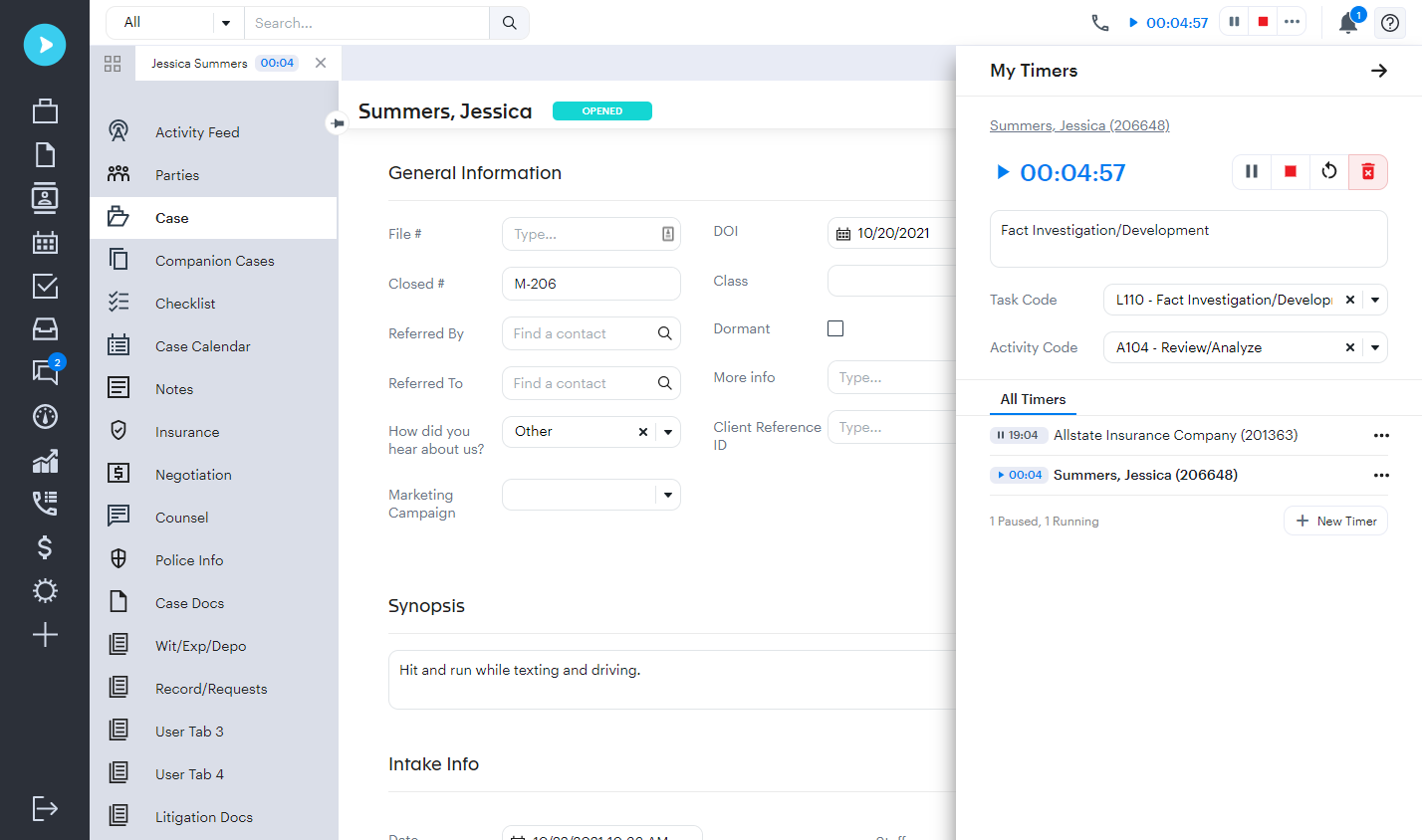
Another thing to keep in mind is that documents and images from the Production Tracker in Trialworks now move to the Neos Case Docs (Documents) Tab.
Email and Notes
The Trialworks email tab has moved and is now loaded in the Neos Notes Tab. To find this, head over to the emails tab in Neos Notes. Additionally, the Trialworks Notes Tab is now referred to as the Neos Notes Tab. Each entry is migrated to Neos with similar column names and any documents attached to a note gets moved to the Neos Case Docs Tab.
Trialworks History Tab vs. Neos Activity Feed
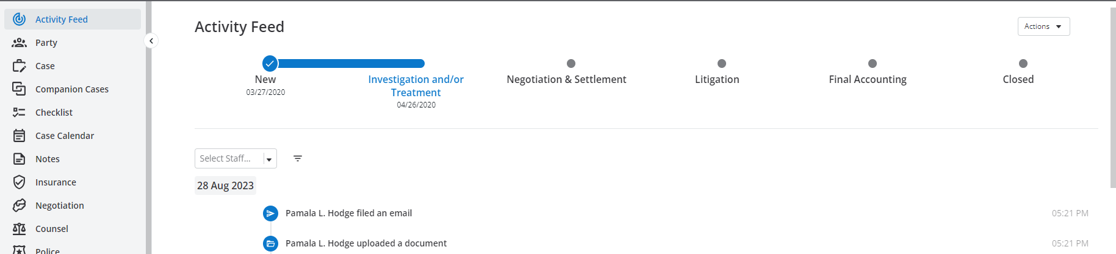
One of the key features that sets Neos apart is its intuitive and user-friendly Activity Feed. This feature replaces the History Tab seen in Trialworks.
Here's a breakdown of what it looks like:
- The Activity Feed provides information in a timeline format like a chronological overview of case activities.
- It offers a swift and clear understanding of what's going on in a case including the full timeline of a case and the date that the last item was marked completed.
Integrations
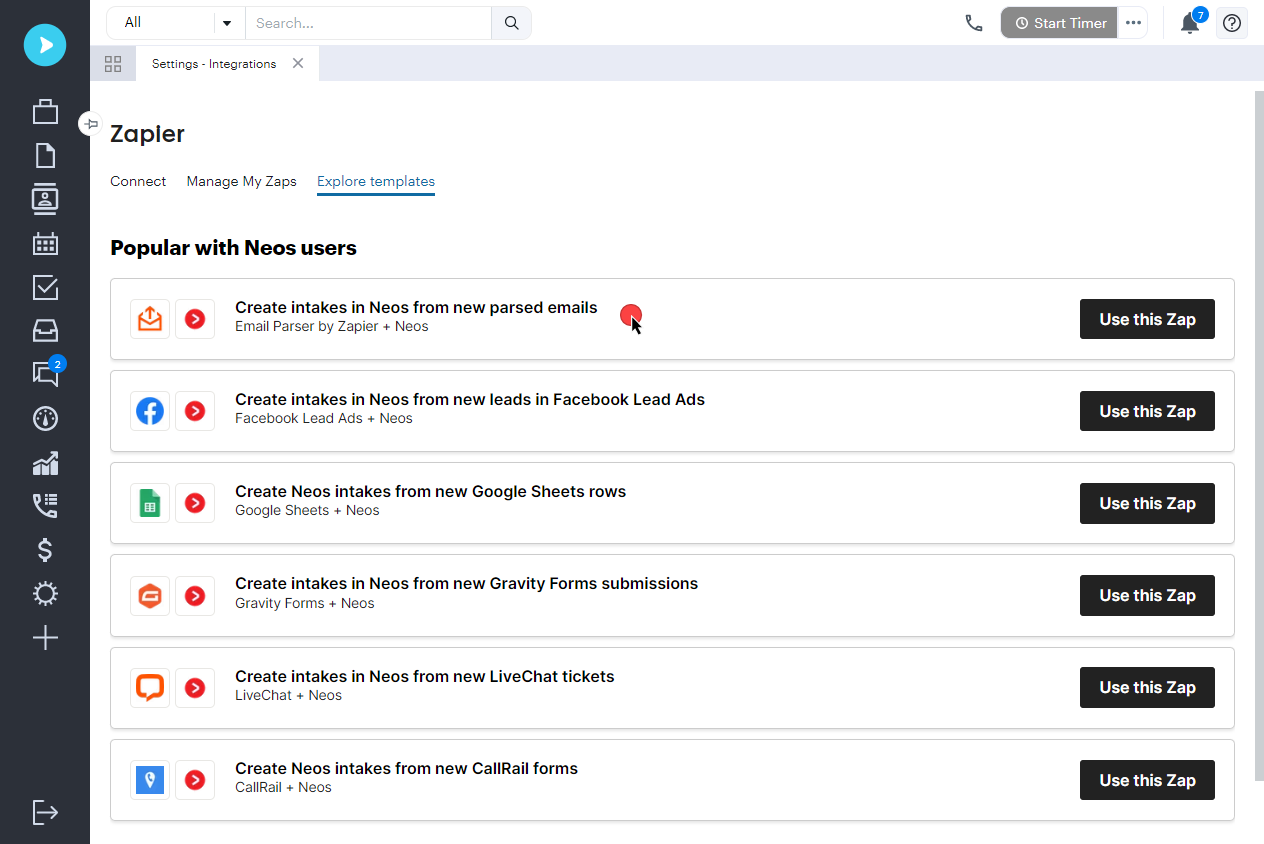
When firms transition to Neos, they gain access to robust integrations, eliminating the need to switch between applications. Neos seamlessly integrates with a variety of popular applications, continuously expanding its compatibility with new additions each month. With Neos, users can conveniently access Microsoft Office 365, including Outlook and Calendar, alongside DocuSign, QuickBooks, RingCentral, and more, all without leaving their case management software.
Learn more about Neos
Understanding these migration details is key to a smooth transition from Trialworks to Neos.
To learn more about how to unlock more efficiency for your firm, reach out to our team today.