We're knee-deep in preparation for our massive December release, but we've made some minor enhancements for this month's release that will improve your life with Neos!
The November release includes:
Enhancements
- Text Message Conversations
- First Counsel Added to a Case Defaults to 1 for the "Cert/Notice Filing Order" Field
- Change to any Status from the Checklist Sidepane
- Bulk Void & Delete Accounting Items
Enhancements
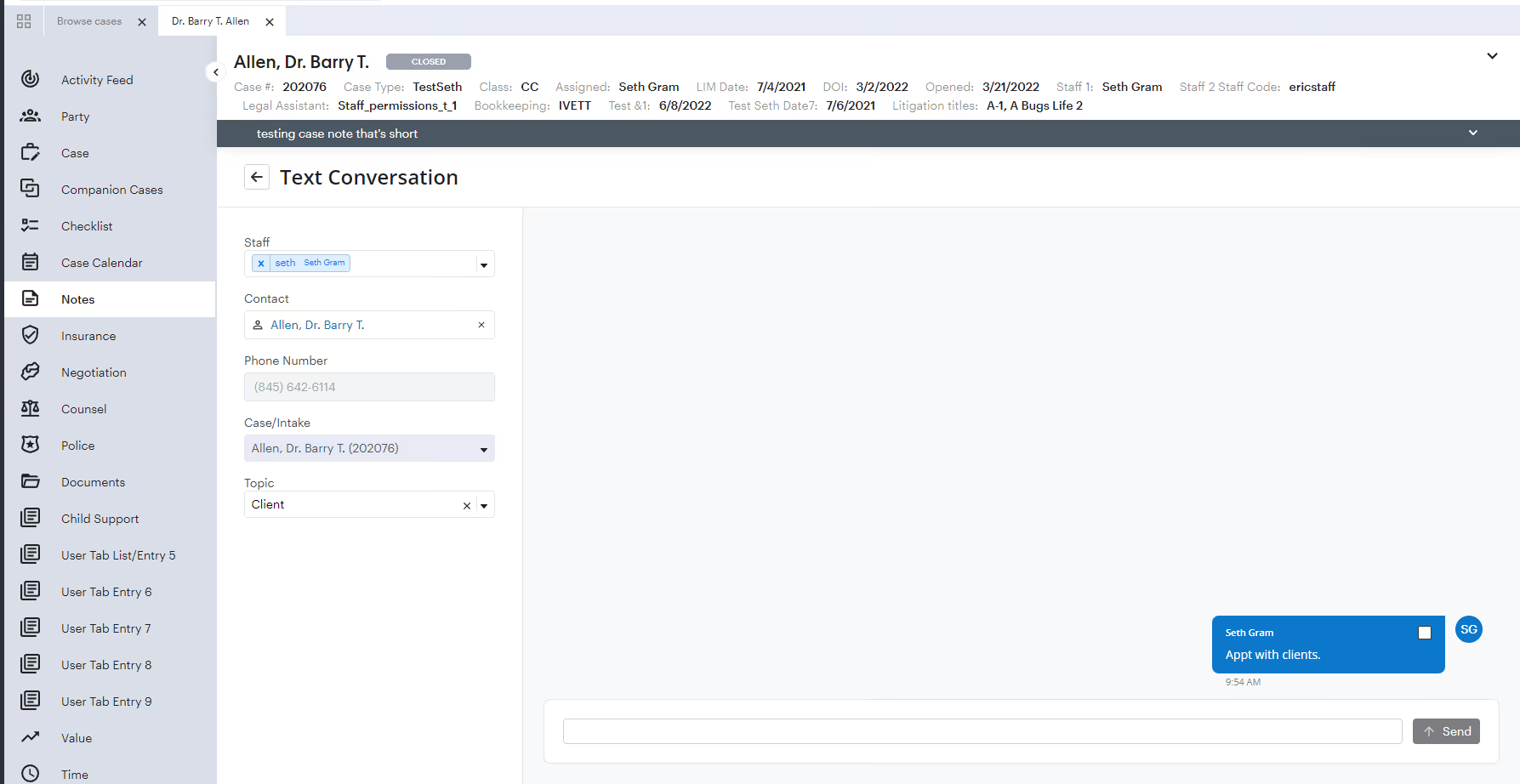
Text Message Conversations
Keep all texts sent to a specific number organized under a single Note. All text messages sent from Neos will belong to a “conversation,” which is defined by the combination of phone number and case.
How to use it
The Text Messages tab in Case Notes now shows a list of text message conversations. Open the conversation to send new text messages in the context of the previous conversation.
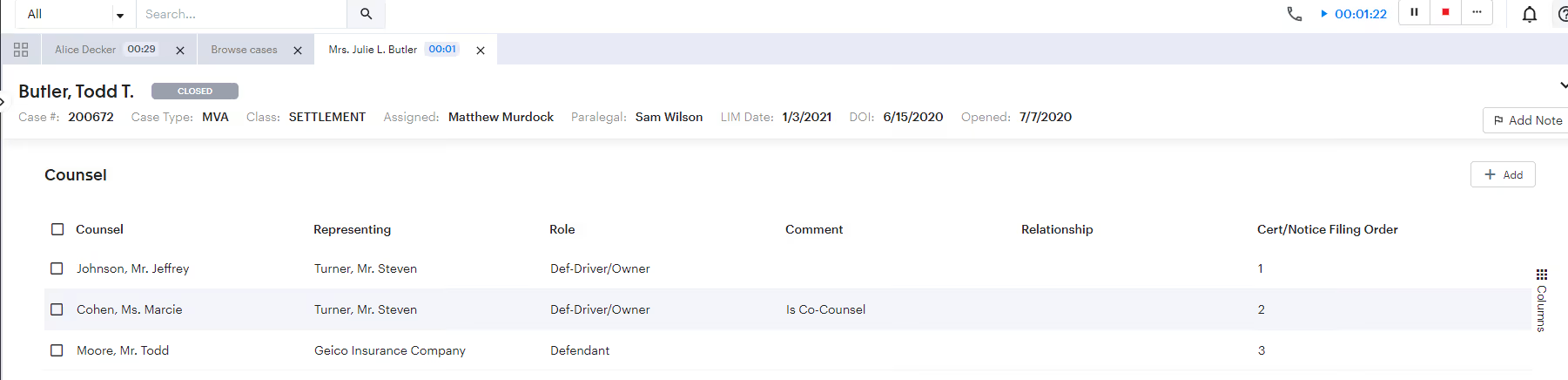
First Counsel Added to a Case Defaults to 1 for the "Cert/Notice Filing Order" Field
Counsel is automatically included in the Certificate of Service tags in document generation.
How to use it
Neos does the work for you! The first Counsel added to a case will now have the Cert/Notice Filing Order field default to 1.
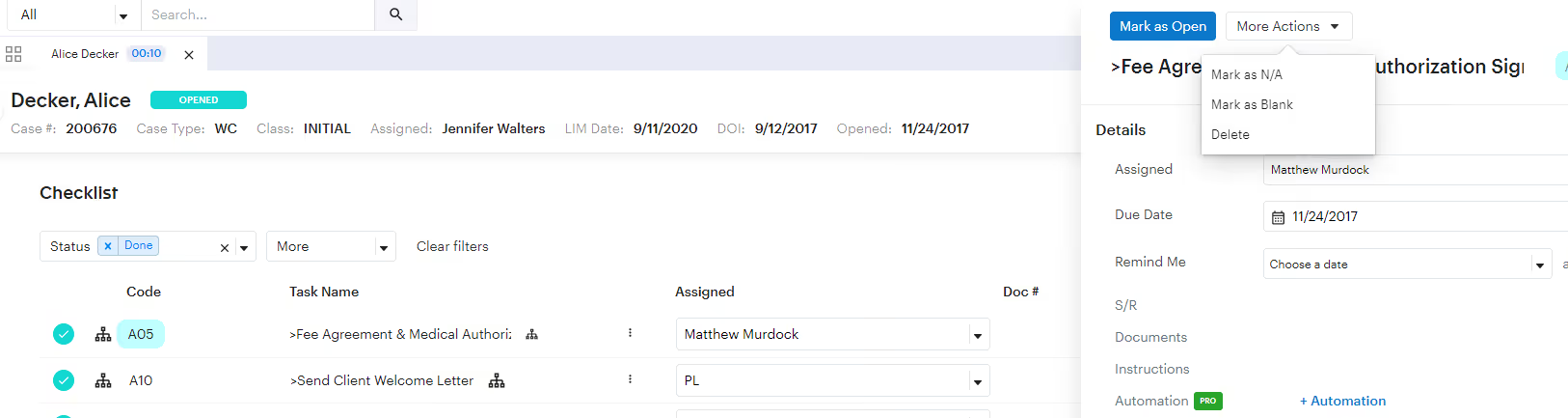
Change to any Status from the Checklist Sidepane
When viewing a Checklist item from the sidepane you can change the status of the Checklist item.
How to use it
Click the “More Options” menu to choose a different status or delete the Checklist item. The available status options depend on the current status.
- If Blank– Status Options include: Mark as Open, Mark as N/A, Mark as Blank
- If N/A – Status Options include: Mark as Done, Mark as N/A, Mark as Blank
- If Open or Done – Status Options include: Mark as N/A, Mark as Blank
Bulk Void & Delete Accounting Items
You can now bulk void any due or overdue invoices that are no longer active and bulk delete any draft or pending invoices you no longer need.
How to use it
- Bulk Void - Due or Overdue invoices can be voided in bulk from the Accounting > Invoices Tab.
- Bulk Delete - Draft or Pending invoices can be deleted in bulk from the Accounting > Invoices Tab.
.avif)
Questions?
Contact your customer success manager if you have questions about this release, or sign up for one of our monthly Neos demos for a full product refresh!
For detailed instructions on any of these updates and new features, click the Help icon (question mark) in Neos to access the Self-Serve Portal and Knowledge Base.